What you’ll build
You will build a Product Page Bundle that lets customers mix and match eligible products without leaving the surrounding product page. The result will use a Shopify theme app block, a clear selection rule, an appropriate variant selector, and a cart outcome verified against the real component variants.
This surface is best when an anchor product or product story should stay visible. It is not merely a smaller Full Page Bundle: placement belongs to a product template, and the theme continues to own the rest of the product page.
Before you begin
Choose the Shopify product or product group that should host the offer. In Online Store → Themes, identify which product template those items use. Editing the wrong template is the most common reason a correctly saved bundle does not appear where expected.
Review the eligible products in Shopify. Note variant option names, swatch-relevant values, images, pricing, and availability. If color labels are inconsistent—“Navy,” “navy blue,” and “Dark Blue”—cleaning the catalog first will produce a clearer selector.
1. Create the bundle and define its context
Select Create Bundle, choose Product page bundle builder, and continue. Give the bundle a name that describes the combined offer. Add concise customer-facing instructions that state how many items to choose and what happens when the requirement is met.
Keep the initial assortment focused. A product-page offer competes for attention with media, description, price, variants, and the theme’s main product form. If customers need several separate decisions across a very large catalog, use a Full Page Bundle instead.
2. Add products or collections
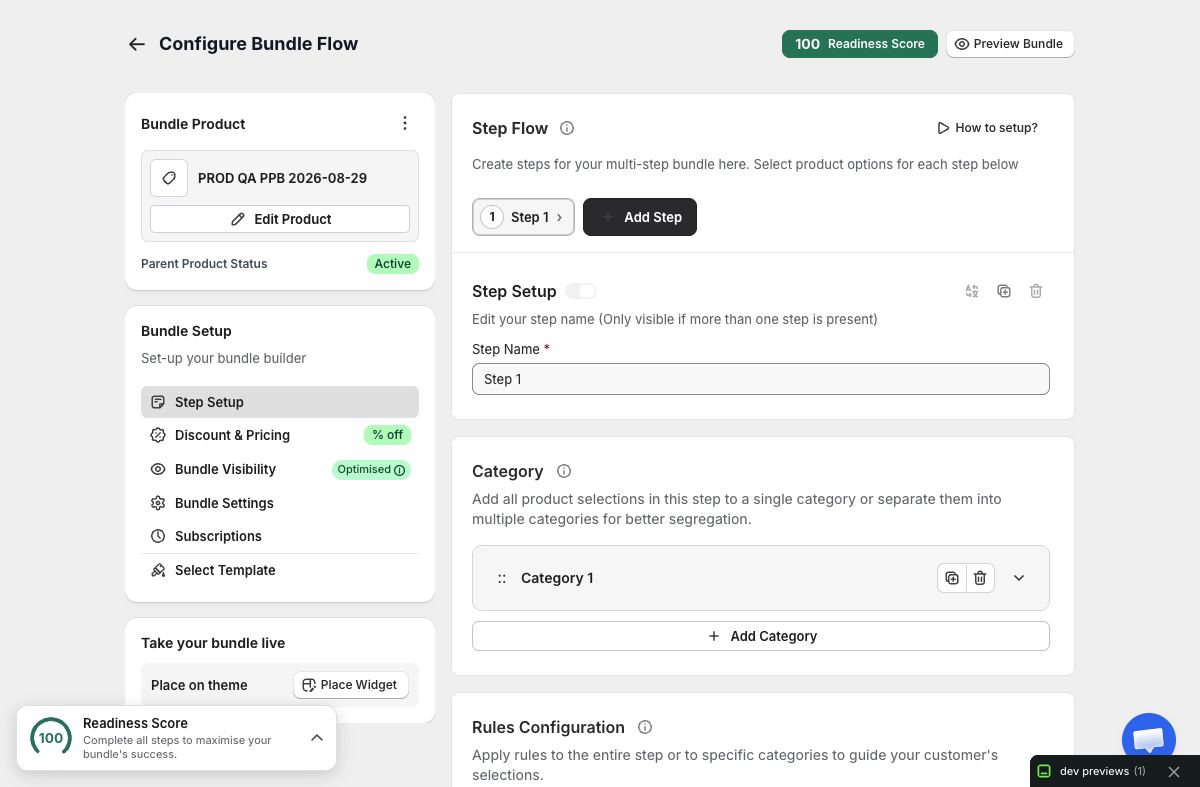
Open Step Setup and expand the category. Add the products that customers may combine. Use a collection only when its ongoing Shopify membership is genuinely the desired source of truth. After adding a collection, review the resolved products; collection automation can introduce items that do not suit the offer.
Check each product’s variants. The bundle may display products at a high level, but the cart receives selected variant IDs and quantities. Avoid publishing when a required product has no available purchasable variant.
3. Set a satisfiable selection rule
Choose the allowed quantity or selection conditions for the category. Write the same rule in customer language. If the editor requires three items, the instruction should say “Choose any three,” not a vague “Complete your set.”
Test the boundaries. Verify what happens before the minimum, at the minimum, and at the maximum. If repeat quantities are allowed, make sure increasing one product behaves differently only when intended. If the assortment contains fewer available choices than the maximum, revise the rule before launch.
4. Choose how variants are presented
Only Bundles exposes variant selector choices including Dropdown, Pills, Color swatches, and Image swatches for Product Page Bundles. Pick the selector that matches the catalog data:
- Use a dropdown when there are many values or long option names.
- Use pills for a short list such as size or pack count.
- Use color swatches when the product option values are connected to Shopify’s Color category metafield and provide canonical colors.
- Use image swatches when those Shopify option-value swatches provide canonical images.
If the products are not set up with Shopify-native swatches yet, follow Set up product variant swatches before selecting a swatch mode. Variant images and option-value swatches are separate Shopify resources; Only Bundles never guesses one from the other.
Preview products with one option and products with multiple options. Do not let a visually attractive swatch hide an unavailable combination or remove the variant label customers need.
5. Select a Product Page template
Open Select Template and review Product List, Product Grid, Horizontal Slots, and Vertical Slots. Choose based on available theme width, product count, image ratio, and how much detail customers need. The template controls presentation; it should not change which variants or quantities are eligible.
Use the Design workspace to align supported brand colors and typography. Check selected, sold-out, validation, discount, and long-summary states. Preview at mobile size because the surrounding product template may already contain sticky controls, accordions, or a dense media gallery.
6. Configure pricing and supporting features
If the offer includes a discount, configure the intended model in Discount & Pricing and validate the calculation using products with different prices. Add gifts, add-ons, or subscriptions only if they strengthen the product-page story and their eligibility can be explained in a few words.
Be especially careful with subscriptions. Only Bundles uses selling plans already defined in Shopify or by a subscription provider; it does not create a second subscription system. Every selectable variant in the bundle must share the compatible selling-plan group and plan IDs.
7. Place the Shopify app block
Save the bundle, then open its visibility or placement guidance. In Shopify Theme Editor:
- Open the product template used by the intended host product.
- Add the Only Bundles product-page app block.
- Position it where the offer is understandable in relation to the main product information.
- Save the theme.
Use Shopify’s canonical app-block placement rather than pasting custom runtime scripts. If you use a supported page builder, follow the dedicated integration tutorial so that the app embed owns loading and the placement element identifies only where the bundle belongs.
8. Verify the live product page and cart
Open an eligible product in a fresh, cache-bypassed storefront tab. Confirm the bundle appears only in the intended context. Change variants, reach the required quantity, remove an item, and verify that progress, discount messaging, and the summary remain accurate.
Repeat in a genuinely resized mobile browser window. Then add a valid bundle to Shopify cart and confirm component titles, variants, quantities, plans, discount, and total. The cart result is more authoritative than a screenshot of the editor preview.
Troubleshooting
The bundle does not appear. Confirm the bundle is active, the app block was saved on the template actually used by the product, and the product is eligible. Reload without cache.
The block appears on the wrong products. Review the template assignment and bundle eligibility. Shopify templates can be shared by many products, so placement and eligibility must work together.
Swatches look wrong or ambiguous. Check that the option is connected to the correct Shopify category metafield and that each category entry contains the intended swatch. Switch to pills or a dropdown if the catalog does not provide canonical swatch data.
The theme has two competing add-to-cart experiences. Reconsider placement and instructions. Do not hide or rewrite the theme’s main product behavior with custom scripts; make the bundle’s purpose explicit.
Cart lines are not what you selected. Recheck variant availability and selector state, then isolate optional discounts, add-ons, gifts, and selling plans one at a time.
Publish with confidence
The Product Page Bundle is ready when its host template is deliberate, its selection rule is obvious, each variant control is truthful, and Shopify cart contains exactly the components the customer reviewed.