
What you’ll learn
You will set up swatches at their correct source—Shopify product data—and then tell a Product Page Bundle how to present them. The finished example uses a T-shirt with two option dimensions: seven Size values and four Color values. On the bundle storefront, Size remains a compact dropdown while Color uses the canonical Shopify swatches. Customers can choose any valid Size × Color combination without the product card becoming disproportionately tall.
This tutorial does not create a second swatch database inside Only Bundles. Shopify’s product category, category metafield, option values, and ProductOptionValue.swatch data remain the source of truth. That keeps the same color entry reusable across products and prevents an app from guessing colors from names such as “Midnight” or using a variant image as an unrelated fallback.
Before you begin
You need permission to edit products in Shopify and an existing Product Page Bundle containing at least one multi-variant product. Review the product’s options and confirm that every combination customers should buy exists as a Shopify variant. For example, seven Size values and four Color values produce 28 combinations when every size is available in every color.
Use a current Shopify product category that exposes a Color category metafield. Shopify’s color swatch guide explains that category metafields come from Shopify’s Standard Product Taxonomy. Shopify also documents how to connect variant options to category or product metafields.
1. Assign the most accurate Shopify product category
From Shopify admin, go to Products and open the product. Find Category, then select the most accurate result that includes the Color category metafield. For a standard T-shirt, Shopify may suggest T-Shirts in Clothing Tops. Review the suggestion instead of choosing a broad category only to unlock a field; category data can also affect discovery, channel mapping, and tax behavior.

Save the product. After Shopify applies the category, a Category metafields area appears with the attributes supported by that taxonomy entry. Color, size, fabric, neckline, and other suggestions vary by category. You only need to connect the attributes that genuinely describe the product.
2. Connect the Color option to Shopify’s Color category metafield
In the product’s Variants section, open the existing Color option. Select the dynamic-source control beside the option name and choose Color from the recommended category metafields. Shopify converts the ordinary text values into connected category entries while preserving the product’s variant combinations.
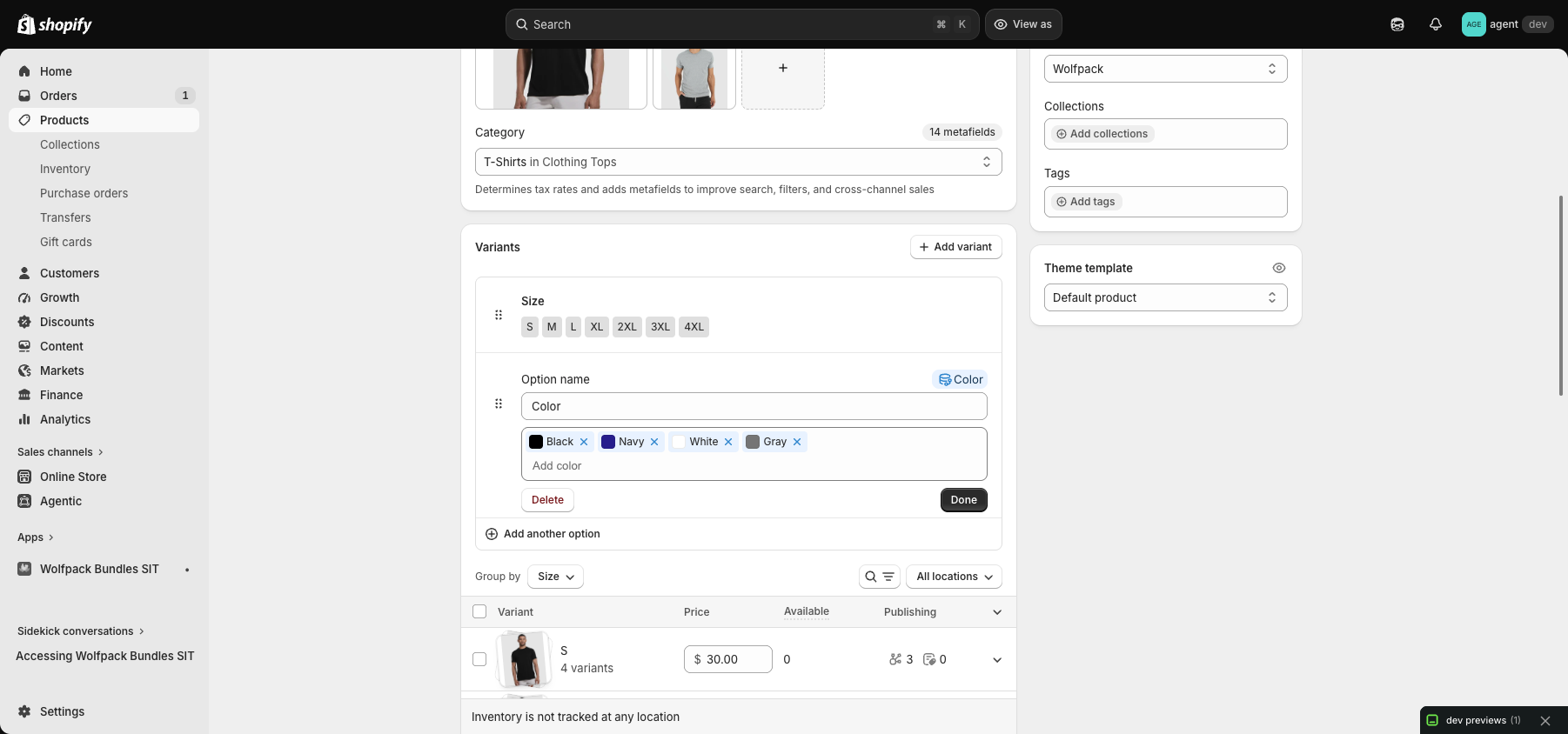
Confirm that every option value is present and correctly named. In the example, Black, Navy, White, and Gray remain connected to all seven sizes. Click Done, save the product, hard reload the page, and reopen the Color option. The connected-source indicator and the color previews should still be present. That hard-reload check proves the relationship was saved rather than only displayed in the current editing session.
If you are creating a new option, Shopify can fill the available entries after you choose a compatible metafield. If you already have a Color option, connect the existing option as described above; do not delete and recreate 28 valid variants merely to obtain swatches.
3. Review or customize each Shopify color entry
Open an entry such as Black or Navy from the connected Color option or from Content → Metaobjects. Keep the customer-facing label recognizable. Review the swatch fields offered by Shopify and choose the accurate color or image representation for that entry, then save it.
A color swatch and a variant product image serve different purposes:
- The option-value swatch is the compact visual control representing a choice such as Black.
- The variant image is the larger product image shown after a particular variant is selected.
- Shopify’s Storefront API may expose a swatch color or a swatch image through
ProductOptionValue.swatch. - Only Bundles uses that swatch object directly. It does not infer “Navy” from a name table and does not substitute the variant’s product image when the requested swatch kind is missing.
For a plain color, use Color swatches in the bundle. Choose Image swatches only when Shopify’s option-value swatch actually contains an image. Assigning a normal variant image alone does not create an option-value image swatch. Shopify separately documents adding images to product variants for the larger product preview.
4. Select the matching variant selector style in Only Bundles
Open the Product Page Bundle in Only Bundles. Go to Step Setup, expand the category containing the product, and find Variant selector style. Choose one of the documented modes:
- Color swatches uses canonical swatch colors from Shopify.
- Image swatches uses canonical option-value swatch images from Shopify.
- Pills presents text choices directly.
- Dropdown uses compact native selectors for every option dimension.
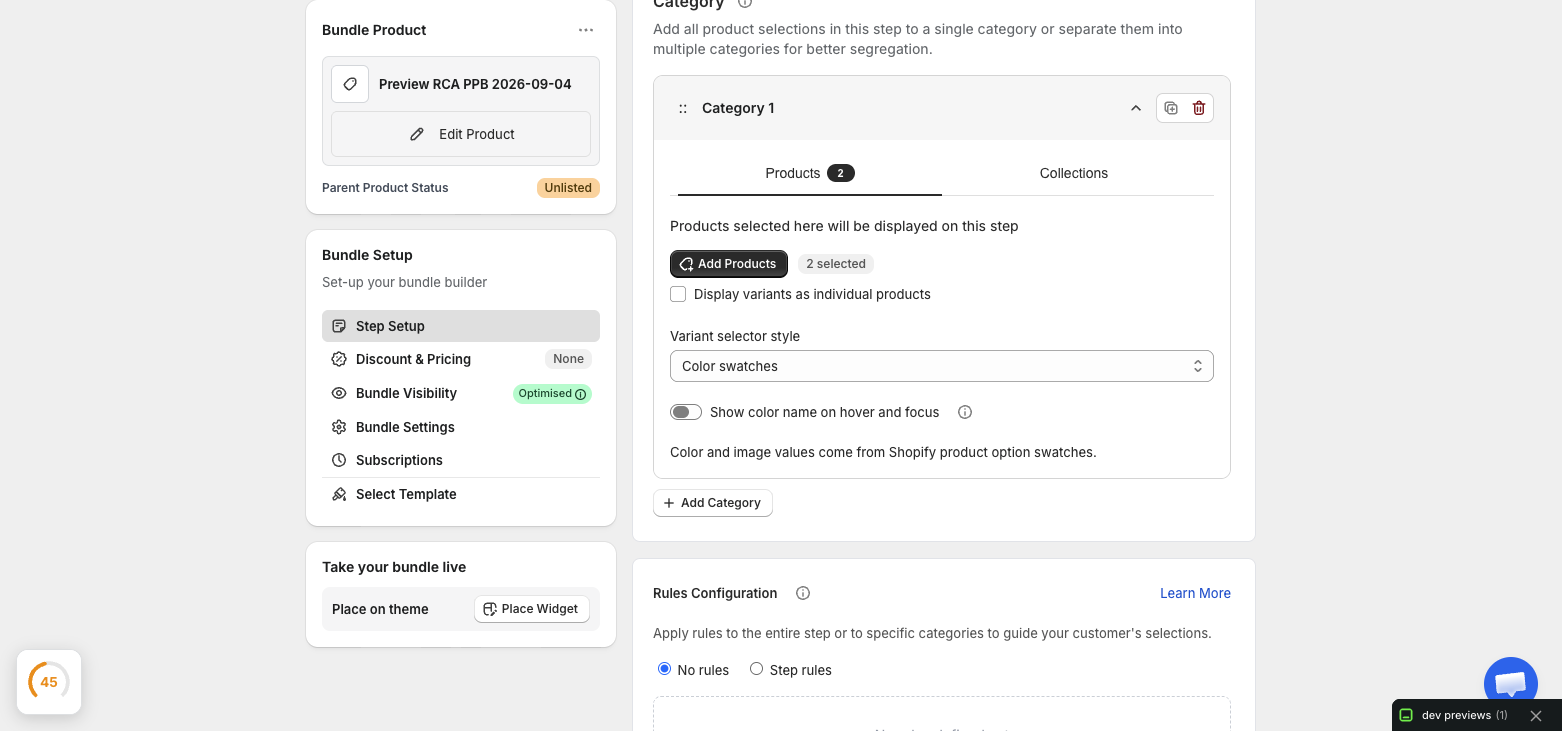
The helper text beneath the field confirms that color and image values come from Shopify product option swatches. For a two-dimensional product in a swatch mode, Only Bundles keeps the layout compact automatically: a dimension such as Size that does not provide the requested swatch becomes one native dropdown, while a mapped Color dimension keeps its swatches. If neither dimension contains the requested swatch kind, each dimension uses a dropdown instead of displaying misleading or oversized placeholder swatches.
This compact behavior also applies to multi-dimensional Pills: one concise dimension remains a pill group while each additional dimension becomes a labeled native dropdown. If you explicitly choose Dropdown, every dimension remains a dropdown. Only Bundles preserves the selected presentation style while bounding the card height and keeping every Shopify option value available.
5. Save, sync, and preview the bundle
Save the Product Page Bundle using the contextual save bar. If the editor asks you to sync the bundle after a storefront-format change, run the normal Sync Bundle action so the storefront snapshot contains the current product and option data. Then use Preview Bundle to open a fresh signed preview URL; do not reuse an old preview tab.
On the product card, select a non-default Size and then a different Color. Confirm that the product image, price, availability, selected value, and add eligibility represent the exact combined variant. Repeat in the product picker or modal if the selected template provides one. Unavailable values should remain visible but disabled, so customers can understand the assortment without selecting an invalid combination.
6. Verify desktop and mobile storefront behavior
Test with a hard reload and browser cache bypass. On desktop, check the complete card, neighboring cards, summary, and bundle call to action. On mobile, resize the actual browser window rather than using browser zoom. Confirm that:
- Size and Color labels are readable.
- The Size dropdown does not overlap the Color swatches.
- Every swatch remains directly reachable with touch and keyboard.
- Long values such as 2XL and 4XL are not clipped.
- The product card has no horizontal scrollbar or hidden “more” values.
- Selecting Size and then Color preserves both choices and resolves the exact Shopify variant.
- The bundle summary, footer, mobile tray, and add-to-cart action remain unobstructed.
Also compare a product with one option and a product with two options. A single Color option can use the full swatch presentation because it does not need the compact cross-dimension treatment.
Troubleshooting
The Color option has no connected-source indicator. Reopen the product, confirm that its category exposes the Color category metafield, connect the existing Color option through the dynamic-source control, save, and hard reload.
Color swatches render as text or a dropdown. Inspect the Shopify category entry. A name such as “Black” is not enough by itself; the option value must provide the canonical swatch color requested by the selected mode.
Image swatches render as dropdowns. Confirm that the option-value swatch has an image. A variant’s larger product image is separate and is intentionally not used as a fallback.
Changing Color resets Size. First verify that the exact Size × Color variant exists and is available in Shopify. If it exists, save and sync the bundle again, then open a fresh preview and retest.
The storefront still shows older values. Save the product, sync the bundle, open Preview Bundle again, and hard reload with cache bypass. Shopify extension assets can be cached independently from product data, so verify the current preview rather than relying on an already-open tab.
Publish with confidence
The swatch setup is ready when Shopify owns each option-value swatch, Only Bundles is configured for the matching presentation, every Size × Color combination resolves correctly, and the compact product card remains usable on desktop and mobile. This arrangement follows Shopify’s catalog conventions and keeps Only Bundles focused on bundle presentation and selection rather than duplicating product data.