
What you’ll build
You will connect an existing Shopify selling-plan group to an Only Bundles offer, choose which plans customers can use, select a default when appropriate, and verify that every component reaches cart with the intended selling plan. Only Bundles is provider-neutral: it consumes selling plans already owned by Shopify or a subscription provider instead of creating a second subscription system.
The strict compatibility rule protects the customer journey. Every selectable variant in the bundle must share the same selling-plan group and compatible plan IDs. A plan available on only some products cannot safely describe the full bundle.
Before you begin
Create and manage subscription plans in Shopify or your chosen subscription provider first. Confirm that the provider supports the products and checkout behavior you intend. Record the selling-plan group and the specific delivery or billing options you want to expose.
Review the bundle for incompatible features. The supported subscription flow blocks Buy X Get Y pricing and enabled free-gift, add-on, or personalization branches. If those features are central to the offer, create a separate bundle for subscriptions rather than forcing incompatible states together.
1. Make the product set subscription-compatible
List every variant a customer can select, including variants introduced through collections. For each one, confirm it belongs to the same selling-plan group and exposes the same plan IDs you intend to offer.
Do not check only the default variant. A customer may open another color, size, scent, or pack and discover that the plan is unavailable. Remove incompatible variants from the bundle or update the subscription provider’s product assignment before continuing.
Collection-backed assortments need ongoing attention. A newly added collection product may not share the group even though the previously tested products did.
2. Open Subscriptions and run readiness checks
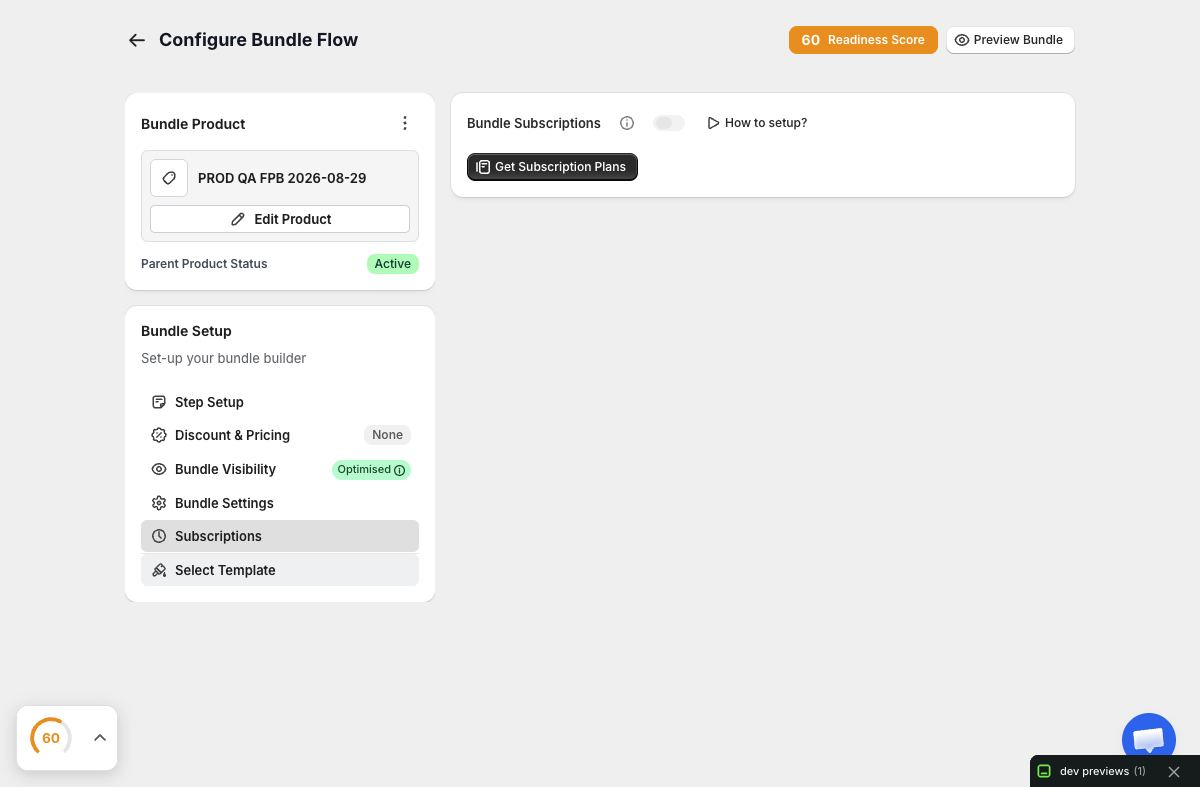
In the bundle editor, open Subscriptions. Review the setup guidance, then enable Enable bundle subscriptions when the base bundle is otherwise complete. Use Get Subscription Plans to retrieve the plans available through the connected Shopify product configuration.
If no plans appear, stop and correct the Shopify/provider setup. Do not fabricate a plan ID, create a private fallback field, or paste subscription scripts into the theme. Shopify’s selling-plan resources are the canonical source.
3. Select the plans customers may use
Choose only the plan options that make sense for the complete bundle. If products share weekly, monthly, and quarterly plans but the bundle contents suit only monthly replenishment, publish the meaningful subset.
Use customer-facing plan names supplied through the selling-plan configuration. Confirm frequency, billing behavior, discount description, and any provider-specific policy text. Only Bundles should not contradict the terms customers will see later in cart, checkout, or account management.
4. Choose a default plan deliberately
A default reduces friction but also influences the purchase customers make. Select a subscription default only when the page clearly communicates recurring behavior before the final action. If one-time purchase remains available, make the two choices distinguishable and verify which state is selected initially.
Do not describe a recurring saving without showing the associated cadence. “Save 10% monthly” is clearer than “Best value” when the latter hides the commitment.
5. Coordinate bundle discounts with selling plans
Review how the bundle’s discount and the subscription plan’s pricing are presented. The customer should understand whether both apply, how the visible total was calculated, and which terms belong to the provider.
Test varied component prices and quantities. A correct plan selection does not guarantee the bundle discount threshold is also satisfied. Keep messages specific so a customer does not confuse bundle progress with subscription savings.
Buy X Get Y is not compatible with the current bundle-subscription flow. Choose a supported pricing approach rather than adding a custom workaround.
6. Preview every purchase mode
In the preview, test the default plan, each alternative plan, and one-time purchase if the bundle allows it. Change a product variant after choosing a plan. Move backward through a Full Page Bundle or change several selections in a Product Page Bundle.
The chosen plan should remain valid only while all selected variants support it. An incompatible variant should not silently enter a recurring bundle with missing plan data.
7. Verify the live storefront
Save the bundle and open it in the intended theme with cache bypassed. Test desktop and a genuinely resized mobile window. Check that cadence, recurring status, price, bundle discount, summary, and final action remain understandable at every size.
Use the actual assortment, not a shortened preview fixture. Select variants from the beginning, middle, and end of the available list so that compatibility is exercised broadly.
8. Verify Shopify cart lines
Add a valid subscribed bundle to Shopify cart. Inspect every component line. Each must carry the intended selling-plan allocation, variant, and quantity. Confirm the cart’s recurring labels, prices, bundle savings, and total agree with what the customer reviewed.
Repeat with another permitted plan and with one-time purchase when available. Do not place a live order without an approved test-order procedure. Cart verification is necessary, while an actual paid order is an external transaction.
9. Maintain the bundle after catalog changes
When products, variants, collections, or provider assignments change, rerun Get Subscription Plans and repeat compatibility checks. A previously valid bundle can become incomplete when a new collection product lacks the shared plan or a provider removes a variant.
Add subscription readiness to the merchant’s normal catalog-change checklist rather than treating it as a one-time launch task.
Troubleshooting
Get Subscription Plans returns nothing. Confirm the plans exist in Shopify/provider configuration and are assigned to every relevant product and variant. Then retrieve again.
Only some variants work. Compare selling-plan group membership and plan IDs at the variant level. Remove or correct the outlier; do not fall back silently to one-time purchase.
The subscription switch is blocked. Disable incompatible Buy X Get Y, gift, add-on, or personalization branches, or create a separate subscription-specific bundle.
The plan is visible in preview but missing in cart. Recheck the exact selected variants and inspect every cart line. Treat the Shopify cart result as authoritative.
Customers cannot distinguish one-time and recurring purchase. Revise labels and default selection, then retest the complete state on mobile as well as desktop.
Subscription launch checklist
Every selectable variant shares the intended group and plan IDs; incompatible merchandising is absent; cadence and pricing are explicit; all purchase modes were previewed; and every Shopify cart component carries the correct selling plan. That is the minimum safe recurring bundle launch.