What you’ll learn
You will learn the correct placement path for Full Page and Product Page Bundles, how the Only Bundles app embed and Shopify app blocks differ, and how to verify that the live theme is loading the intended bundle. The result is a storefront installation that uses Shopify’s theme app extension rather than copied scripts or duplicate runtime loaders.
Placement has two distinct jobs. The app embed enables the shared storefront behavior in the active theme. A Product Page Bundle app block identifies where that product-page experience belongs. A Full Page Bundle has its own dedicated route and can be reached from a navigation item, button, or specific link.
Before you begin
Confirm which theme is published and whether you are editing that theme or an unpublished preview. Save the bundle and note its status. Identify its surface—Full Page or Product Page—because the placement steps are intentionally different.
If another person manages theme publishing, coordinate before changing the live theme. Theme Editor changes are real storefront changes even when the bundle itself was prepared safely as a draft.
1. Check the app embed
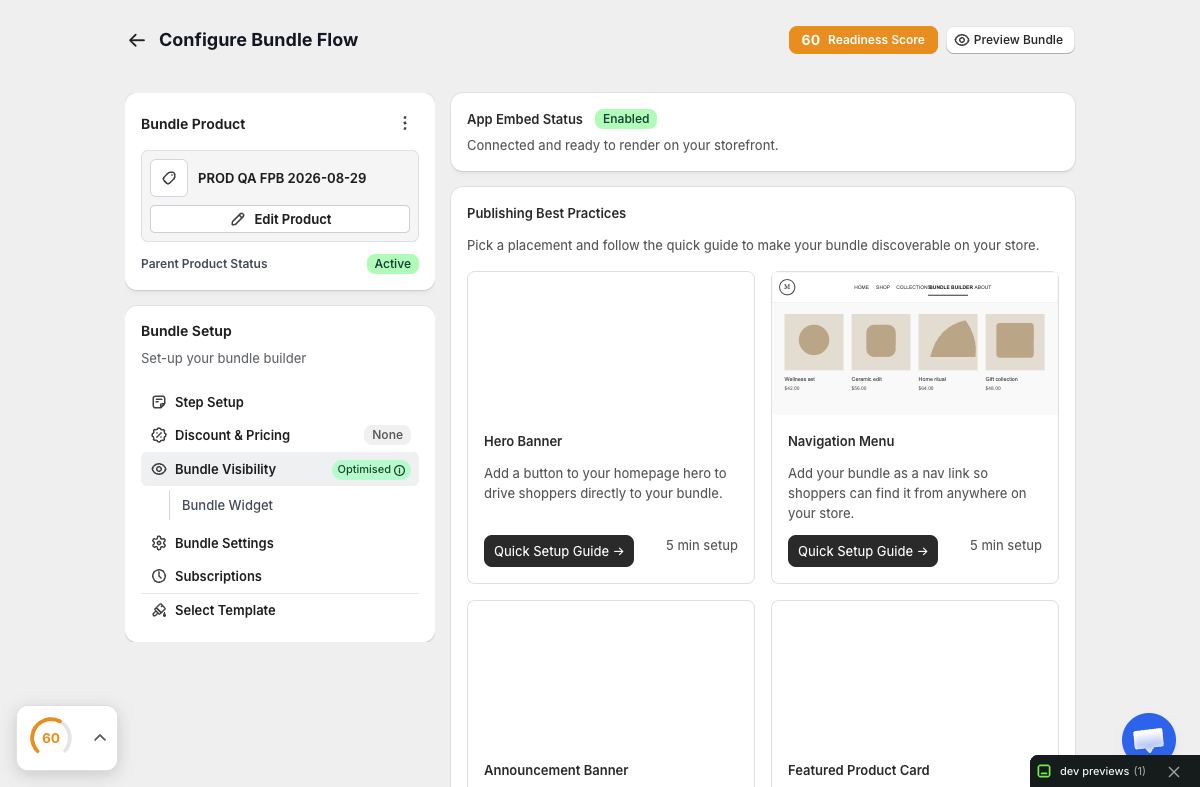
Open the bundle’s Bundle Visibility area and review App Embed Status. Follow the action into Shopify Theme Editor when the embed is not enabled. In Theme Editor, open App embeds, enable Only Bundles, and save.
The embed should be enabled once for the relevant theme. Do not paste the generated storefront JavaScript into theme files and do not add several copies through custom-liquid sections. Duplicate loaders can create repeated initialization, inconsistent events, and hard-to-diagnose cart behavior.
If you are testing an unpublished theme, enable and save the embed in that exact theme. App-embed state does not automatically mean every theme copy has the same setting.
2. Place a Product Page Bundle
A Product Page Bundle uses a Shopify app block on a product template.
- In Theme Editor, choose Products and open the template used by the intended product.
- Add the Only Bundles product-page app block in the product information area or another appropriate app-block region.
- Position it where customers can distinguish the bundle from the theme’s normal purchase form.
- Save the template.
- Open a product that is eligible for the bundle and uses that template.
Template assignment matters. Adding the block to “Default product” will not affect a product assigned to a separate “subscription-product” template. Conversely, a shared template may contain the block on many product pages, while bundle eligibility determines where an offer can actually resolve.
3. Link a Full Page Bundle
A Full Page Bundle uses the dedicated bundle link shown in its visibility settings. It does not require a merchant-created Shopify Page. Copy the bundle URL and decide where customers should enter the journey: the main navigation, a campaign banner, a collection tile, an email, or a button on an editorial page.
When adding a navigation item, use Shopify Admin’s navigation editor and paste the exact bundle link. Give the item a descriptive label such as “Build your gift box.” Avoid several URLs that point to equivalent copies of the same offer; a consistent link is easier to maintain and measure.
The active theme still needs the Only Bundles app embed. The dedicated route renders the bundle in storefront context, so a disabled embed can leave the route without the expected experience.
4. Use preview and unlisted status safely
Keep structural work in draft and use the app preview while configuring it. When you need a live-theme check without normal storefront discovery, an unlisted state and specific bundle link can support a bounded review. Treat the link as accessible to anyone who receives it; “unlisted” is not the same as access control.
After testing, choose the visibility that matches the campaign. Do not leave a public navigation item pointing to a draft or inactive bundle.
5. Bypass stale storefront assets
Storefront assets can be cached. After a configuration, build, or deployment change, open the relevant storefront page fresh and reload with cache bypassed. If your browser retains Cache Storage, clear it before evaluating the result. A normal refresh can display an older widget and make a correct saved change appear broken.
When diagnosing with a developer, distinguish three facts: the source code on disk, the built extension asset, and the asset actually served by Shopify. Only the third proves what customers are running.
6. Verify desktop behavior
Use a desktop window at least 1280 by 800. Confirm:
- The bundle appears once and in the intended location.
- The theme header, product information, and bundle do not obscure one another.
- Product images, variant selectors, selection rules, progress, and summary are legible.
- A valid selection reaches Shopify cart with the expected variants and quantities.
- A bundle-specific discount or selling plan survives the cart handoff.
Test an incomplete selection and a completed selection. If the bundle uses a sticky summary or tray, scroll through the entire journey and check that controls remain reachable.
7. Verify an actual mobile window
Resize the browser window to approximately 390 by 844 rather than using browser zoom or CSS scaling. Reload the page after resizing. Complete the same workflow while checking touch targets, long titles, variant selectors, dialogs, the summary, and the add-to-cart action.
Mobile problems often appear only after products are selected: the summary grows, progress text wraps, and a sticky action may compete with theme controls. Test the complete state, not only the top of the page.
8. Confirm public navigation and recovery
Follow the customer’s true entry point from the storefront, not only a copied Admin preview link. Confirm that inactive or ineligible offers fail gracefully and that customers can return to normal navigation. Then verify the final URL you intend to share.
Troubleshooting
App Embed Status is disabled. Open the active theme’s App embeds panel, enable Only Bundles, and save. Ensure you did not edit a different theme.
A Product Page Bundle does not appear. Check bundle status, product eligibility, product-template assignment, and whether the app block is saved on that template.
A Full Page Bundle link opens without content. Confirm the copied bundle URL is complete and the theme embed is enabled. Reload without cache.
The bundle appears twice. Look for duplicate app blocks or a custom script/custom-liquid installation. Keep the canonical theme extension installation only.
The Admin preview works but storefront cart does not. Reproduce in the live theme and inspect the selected Shopify variants, quantities, discount, and selling plan. Preview and storefront are separate verification layers.
Placement checklist
Use the app embed once per theme, the Product Page app block on the correct product template, and the dedicated route for a Full Page journey. A successful launch is proven by the live storefront and Shopify cart on both desktop and mobile.