
What you’ll learn
You will learn how to control where and when a bundle is available without treating storefront display as security. The workflow covers bundle status, app-embed readiness, product or collection context, specific links, Shopify country selection, campaign schedules, and the verification matrix needed before launch.
Visibility is a policy layered on top of a valid bundle. First make sure the products, rules, and cart behavior work; then narrow the audience. This prevents targeting from hiding a broken base experience.
Before you begin
Write an audience statement: “Show this Product Page Bundle on eligible coffee products in Canada during the September campaign,” or “Allow anyone with the Full Page Bundle link to preview the holiday box before public navigation launches.”
List the intended bundle status, storefront surface, eligible products or collections, included or excluded countries, start and end times, and expiry behavior. Identify the active Shopify theme and confirm the Only Bundles app embed state.
1. Understand publishing states
Use Draft while editing and previewing inside the app. A draft should not be your public campaign target. Use Unlisted when the saved bundle needs a direct review or limited-discovery link but should not be promoted through normal navigation. Use the active public state when the offer is intended for regular storefront discovery.
An unlisted URL is not private authentication. Anyone who receives the link may be able to open it. Do not use unlisted status to protect confidential prices or embargoed information.
When moving a bundle between states, review existing menu items, ads, emails, and page-builder placements. Deactivating the bundle does not automatically retract links already distributed elsewhere.
2. Check App Embed Status
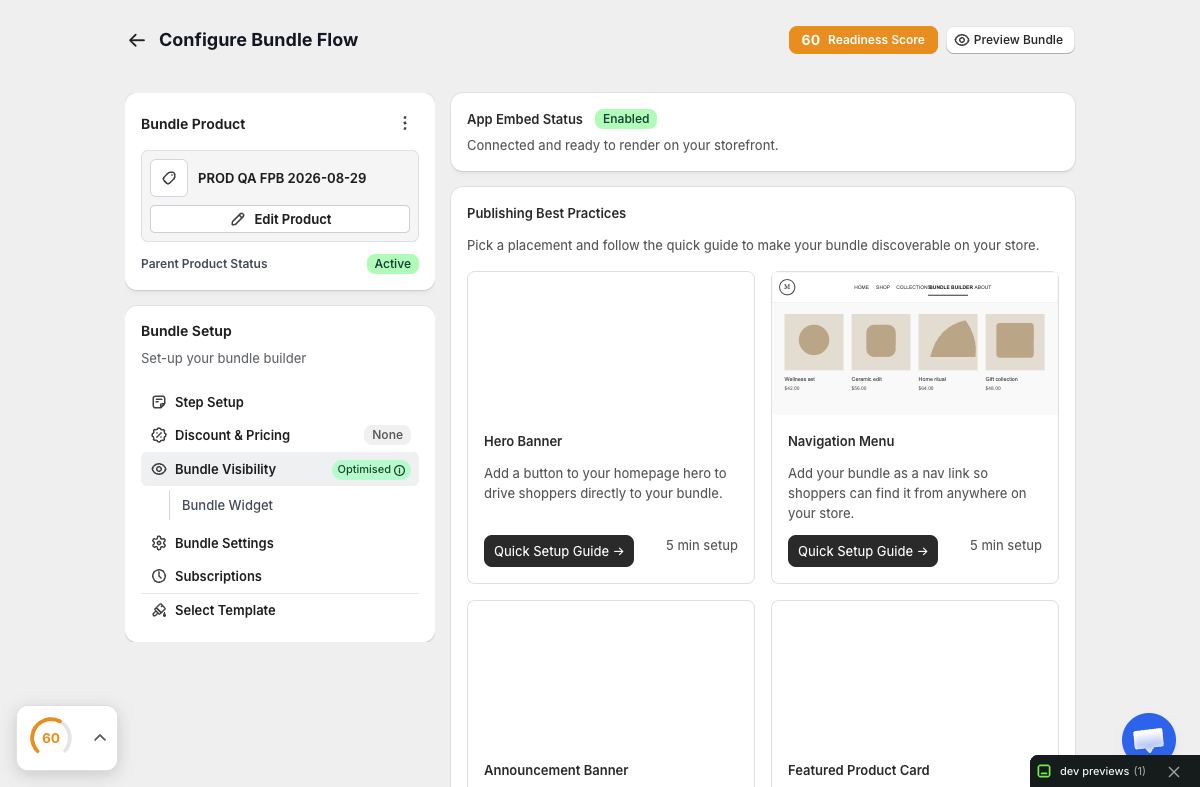
Open Bundle Visibility and review App Embed Status. The active Shopify theme must have the Only Bundles app embed enabled and saved. If you maintain several themes, verify the status in the exact theme used for preview or production.
The app embed loads shared bundle behavior. Product Page placement still requires the appropriate app block, and Full Page Bundles still need their dedicated route. Embed status alone does not decide which offer appears.
3. Configure product and collection context
For a Product Page Bundle, align bundle eligibility with the products and templates where the app block is placed. A shared product template can contain the block broadly, while only eligible contexts should resolve the offer.
If collections help define the assortment or target, remember that automated collection membership can change. Review collection conditions and current products before launching a campaign. Test at least one eligible product and one deliberately ineligible product.
Avoid relying on hidden CSS or custom JavaScript to suppress a misplaced bundle. Correct the Shopify template assignment, app-block placement, or saved eligibility policy.
4. Use a specific bundle link
Full Page Bundles expose a dedicated link that can be used in navigation and campaigns. Some placement workflows also allow an explicit bundle choice. Copy the link from the current visibility guidance rather than constructing a path from memory.
Open the copied URL in a fresh storefront tab. Confirm redirects preserve the intended destination and any approved campaign parameters. Keep one canonical link for organic navigation so reporting and search signals are not fragmented across equivalent URLs.
5. Configure country targeting from Shopify context
Only Bundles uses Shopify’s currently selected storefront country ISO as the regional signal. Configure include or exclude rules using the intended countries. It does not need to infer location from the visitor’s IP address, and it should not override Shopify’s ownership of market selection or checkout availability.
Test the same storefront route after changing the Shopify storefront country selector. Verify one included and one excluded case. If the storefront does not expose a selector, use the store’s approved Markets testing path rather than a browser-location spoof.
Country targeting controls the bundle offer. It does not promise that every product can ship to that country or replace Shopify Markets, inventory, tax, shipping, or checkout rules.
6. Set campaign schedules and expiry behavior
Use real saved start and end dates for scheduled offers. Confirm the timezone displayed by the editor and compare it with the store’s campaign plan. Decide what happens before start and after expiry: hide the offer, show an unavailable message, or return customers to a stable destination according to the supported setting.
If a countdown is shown, it must derive from the saved deadline. Do not use a timer that resets for each visitor. Test just before and after the boundary in an approved environment when possible, and always test the expired state manually before launch.
7. Build a small verification matrix
Check the combinations that can change the outcome:
| Dimension | Cases to verify |
|---|---|
| Bundle status | Draft, intended public state, inactive/expired |
| Product context | Eligible and ineligible product |
| Country | Included and excluded storefront country |
| Time | Active period and expired behavior |
| Viewport | Desktop and a genuinely resized mobile window |
| Entry point | Normal navigation and direct campaign link |
You do not need every possible combination when dimensions are independent, but you do need proof for every branch that changes visibility.
8. Verify cart eligibility after visibility
For an allowed path, complete the bundle and verify Shopify cart components, quantities, discounts, plans, gifts, and total. For a disallowed path, confirm that the offer does not leave a broken partial interface or an action that can submit an invalid bundle.
Remember that visibility is not a substitute for commerce validation. Shopify still decides product availability and checkout behavior.
Troubleshooting
The bundle is active but absent. Check the app embed, Product Page app-block template, eligibility, country rule, schedule, and cached storefront assets.
The bundle appears in an excluded country. Confirm the storefront’s currently selected Shopify country, not your physical IP location. Recheck whether the rule is include or exclude.
A scheduled offer expires at the wrong moment. Compare the saved timezone and campaign specification. Do not compensate with a visitor-relative countdown.
An unlisted bundle was discovered. Unlisted reduces normal discovery but is not access control. Remove distributed links or deactivate the offer if access must stop.
An inactive link produces a poor experience. Update external navigation and configure the supported expired or unavailable state. Test recovery back to the storefront.
Visibility launch checklist
The intended status is saved; the active theme embed and required app block are present; product and collection eligibility are current; country rules use Shopify context; campaign dates and expiry are truthful; and allowed plus disallowed paths were verified on desktop and mobile.